
Getting Started
Set up IM Base after activation and prepare the main site features before starting project-specific design work.
Overview
IM Base is a lightweight WordPress starter theme for agencies and freelance developers. It provides a starting structure with restrained styles, reusable layouts, responsive utilities, and common website features while leaving project-specific design decisions to each site.
After activating the theme, begin by configuring the site settings, navigation menus, homepage, and posts page. You do not need to edit the theme’s PHP, SCSS, or JavaScript source code before completing this initial setup.
Start with Site Settings
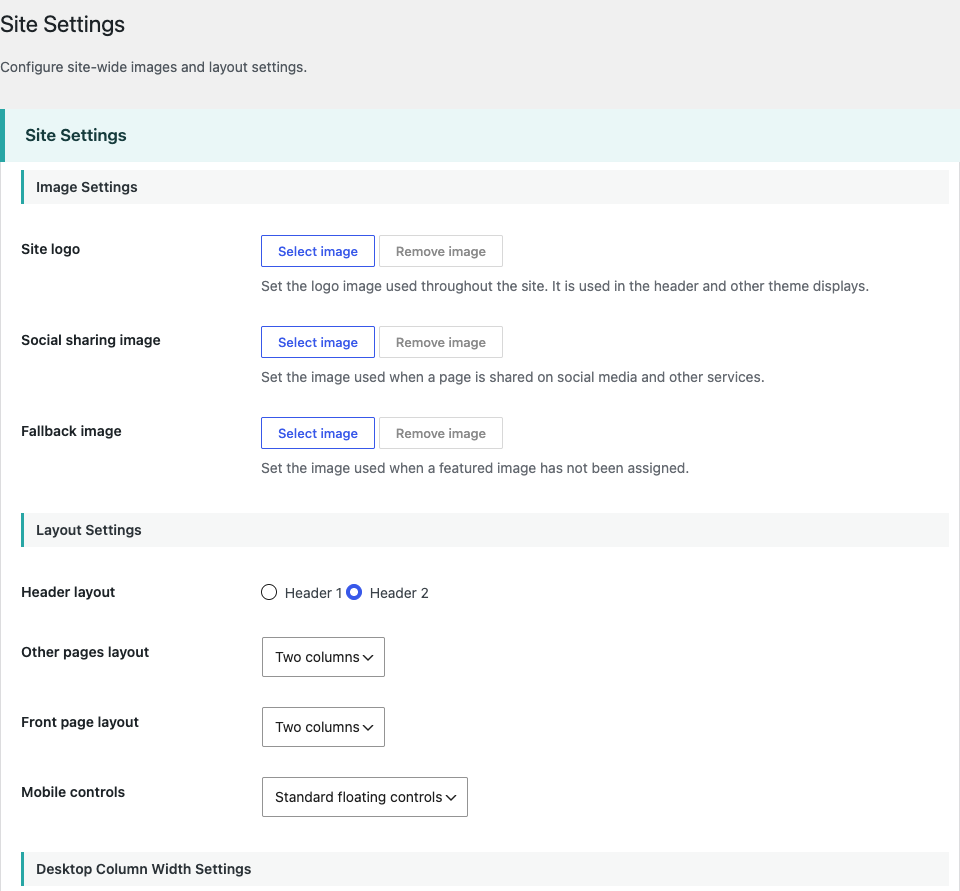
After activating IM Base, open IM Base → Site Settings. In Image Settings, select the site logo, social sharing image, and fallback image.
Review the site-wide options under Layout Settings, including Header layout, Other pages layout, Front page layout, and Mobile controls.
Choose the Site Layout
Open IM Base → Site Settings and find Layout Settings. Header layout lets you choose between Header 1 and Header 2, changing the header shown on the site. Other pages layout controls regular pages and posts, while Front page layout controls the front page. Each offers a one-column or two-column choice; with two columns, the site displays a sidebar alongside the main content.
Mobile controls determine how mobile controls are presented. Choose Standard floating controls or Fixed bottom bar, then save the settings and review the site on a mobile-sized screen.
Create the Navigation Menus
IM Base uses WordPress standard navigation menus. Create the menus you need, then assign them to the Global Navigation and Footer Navigation locations in WordPress.
If a location is unassigned, IM Base outputs no navigation UI for that location. It does not display fixed fallback links or automatically generate a page list.
Prepare the Home Page and Content
Create the Pages your site requires, then select the front page and posts page in the standard WordPress Reading settings. The selected front page displays its Page content, while the posts page displays the site’s post list.
After configuring these settings, add content using normal WordPress Pages and Posts. IM Base uses separate templates for the front page, posts page, individual Pages, and individual Posts, so each content type has its own presentation.
Add Site Information and News
Use IM Base → Business Information to save organization and local business details that the theme can use in structured data and reuse through the current and shortcodes. Add social profile URLs in Social Media Settings, then place the [sns_links] shortcode where those links should appear. The shortcode outputs only services with a saved URL.
Use News Settings to configure how News posts are labeled and displayed. Create and manage News entries through the News post type; the news list can be displayed with the current shortcode.
Common Questions
Setup & Content
Where should I start?
Open IM Base → Site Settings and review Image Settings and Layout Settings.
Where do I change the logo or social sharing image?
Use Image Settings under IM Base → Site Settings.
How do I add header and footer menus?
Create WordPress menus and assign them to Global Navigation and Footer Navigation as needed. An unassigned location is not displayed.
How do I set the home page?
Create the required Pages, then select the front page and posts page in the standard WordPress Reading settings.
How do I display News or saved site information?
Use the current [news_list&], [sns_links], [organization], and [local_business] shortcodes where appropriate.
Design & Customization
How do I add my own CSS or JavaScript?
Add stylesheet names to $styles and script names to $scripts in inc/enqueue-custom.php; they load from assets/css/{name}.css and assets/js/{name}.js. These arrays are filterable with imb_custom_styles and imb_custom_scripts, and additional project assets should use WordPress wp_enqueue_style() and wp_enqueue_script().
$styles = [
    'custom',
];

$scripts = [
    'custom',
];
How should I edit the theme’s CSS?
Edit the SCSS source entry points in assets/scss/style-common.scss, assets/scss/style-pc.scss, and assets/scss/style-sp.scss, then compile them with the configured Prepros workflow. Do not use the generated files in assets/css/ as the source; assets/prepros.config uses Dart Sass and Autoprefixer, and the theme does not define an npm compile command.
How do I change font sizes, text colors, and other design values?
Change the shared design variables in assets/scss/_variables-common.scss, including $color-text, $color-background, $color-link, and $font-size-xs through $font-size-3xl. Compile the SCSS after making the change.
How do I customize the styles used inside Posts and Pages?
Customize the common content rules under .imb-article in assets/scss/pages/_article.scss; this file covers headings, paragraphs, lists, links, images, blockquotes, tables, and other article content. Use assets/css/singular/{slug}.css instead when a change should apply to only one singular page or post.
Where do I add CSS for one page?
Add assets/css/singular/{slug}.css. See the Page-specific CSS documentation for the detailed rules.
Can I use jQuery in my custom JavaScript?
Yes. IM Base front-end scripts use native JavaScript and do not depend on jQuery, but a project script can use the WordPress-bundled copy by declaring jquery as its wp_enqueue_script() dependency; do not load a second copy from a CDN.
wp_enqueue_script(
    'project-script',
    get_theme_file_uri('/assets/js/project.js'),
    ['jquery'],
    filemtime(get_theme_file_path('/assets/js/project.js')),
    true
);
How do I add a fade-in animation?
Add imb-animate and one of imb-from-bottom, imb-from-left, or imb-from-right to the element. assets/js/scroll-animation.js observes the element with IntersectionObserver, adds is-visible once, and respects prefers-reduced-motion.
<div class="imb-animate imb-from-bottom">Content</div>How do I add a parallax effect?
Use imb-parallax on an element with a background image, and optionally add imb-parallax-slow or imb-parallax-fast. assets/js/parallax.js updates –imb-parallax-y while the element is in view and respects reduced motion.
<div class="imb-parallax imb-parallax-slow" style="background-image: url('image.jpg');">Content</div>Where can I find advanced customization information?
See the SCSS Architecture, JavaScript Architecture, Parts, inc Directory Guide, and AI.md Guide documentation.
Layout & Responsive Design
How do I switch between one and two columns?
Use Other pages layout or Front page layout under Layout Settings. Individual content can also use the available layout override.
How does the sidebar work?
It is part of the two-column layout and currently displays search, recent posts, categories, and tags; it is not a WordPress widget area.
Can I create a three-column layout?
Not through the standard settings: IM Base supports one-column and two-column site layouts. A three-column site layout requires changes to the templates and layout PHP plus responsive SCSS, not only a CSS value.
How do I change the responsive breakpoints?
Change Mobile maximum width and Tablet maximum width in IM Base → Site Settings → Responsive Settings; Desktop starts at the next pixel after the Tablet maximum. The theme uses these values for CSS loading and passes the synchronized breakpoint values to JavaScript through window.imbResponsiveSettings, so do not hard-code separate values.
SEO & Metadata
Does IM Base generate an XML sitemap?
IM Base does not generate a separate XML sitemap. inc/sitemap.php filters the WordPress core sitemap to published Pages, Posts, and News, keeps category and post_tag taxonomies, and removes the author sitemap provider.
How do I customize OGP metadata?
Set the default OGP image with Social sharing image in IM Base → Site Settings, or use a featured image for an individual singular item. inc/seo.php generates the built-in title, description, URL, type, image, canonical URL, and Twitter card output; changing that structure requires PHP customization, and the built-in output is disabled when a supported major SEO plugin is detected.
How do I customize structured data?
Change Organization, LocalBusiness, and social profile values through Business Information and Social Media Settings. inc/seo.php generates the JSON-LD structure for WebSite, optional Organization and LocalBusiness, Article, WebPage, and BreadcrumbList; changing the schema structure itself requires PHP customization, and built-in output is disabled when a supported major SEO plugin is detected.
Starter Theme Workflow
Should I use a child theme?
A child theme is allowed, but it is not the standard IM Base workflow. IM Base is a starter theme designed to have its SCSS, PHP, template-parts, and inc modules customized directly for each project; after customization begins, maintain that copy as the project’s own theme.
Will IM Base updates overwrite my customizations?
Yes, applying a later IM Base release to a directly customized copy may overwrite modified theme files. Treat the customized copy as the project’s own theme instead of applying later releases automatically, and use Git or another diff tool to review and manually merge only the improvements the project needs.
Next Steps
Confirm that the required Pages are created, the front page and posts page are selected in WordPress Reading settings, and menus are assigned to Global Navigation and Footer Navigation as needed. Review the site on mobile and desktop, add the initial Pages and Posts content, and only then begin project-specific styling.
For detailed customization guidance, see Page-specific CSS, SCSS Architecture, JavaScript Architecture, Parts, inc Directory Guide, and AI.md Guide.